
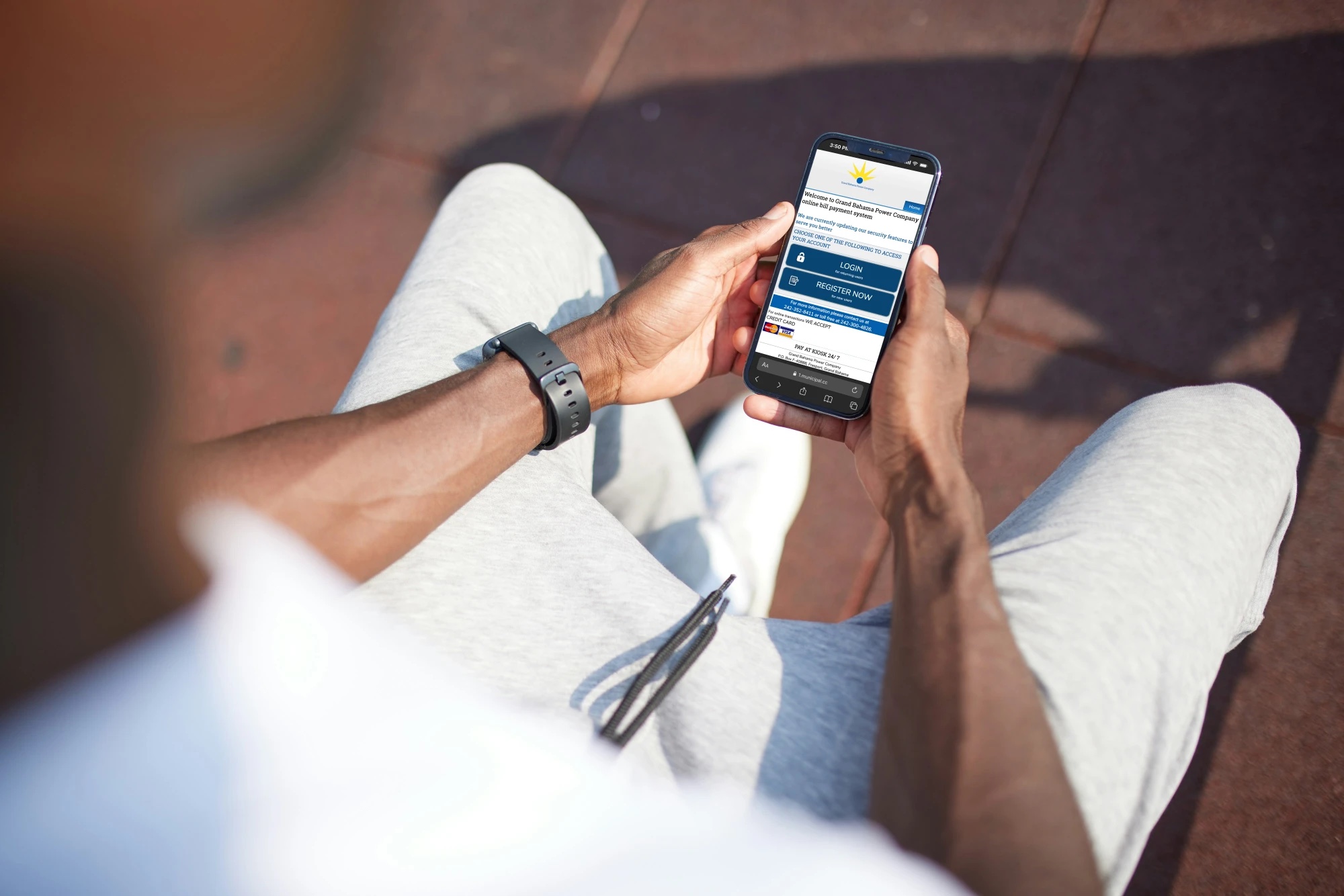
My Account
Pay your bills, update your account information and view your usage and billing history, all in one place.
Access My Account
My Account is powered by our secure online portal. Log in to pay your bill, view your usage and manage your account, or create an account if you’re new.
Alerts & Reminders
Payment reminders and features that suit your preferences.
View & Pay Your Bill
Pay your bills, update your account information and view your usage and billing history, all in one place.
Usage Tracking
View your energy usage history for the past year and confirm the date and amount of your last payment.
Automatic Payments
Set up single, fixed-amount or automatic payments. You can pay your My Account bill by either MasterCard or Visa Credit Cards.
See My Account in Action
How to Sign Up for an Account Online
Watch how to sign up, log in, link your account and see your bills online.
New to My Account? Sign Up in Five Steps
Click the “Create an Account” button above. The GB Power customer portal opens. Click “Register Now”.
Enter your name, city and cell phone number. Then enter your email address (this is your login ID), choose a password and type it again. Click “Register Now”.
Click “LOGIN” at the top of the portal. Enter your email address and click “Next”, then enter your password and click “Login”.
Click “Manage Account”, then “Add Account”. Enter the Customer ID, Location ID and Meter Number from your bill. Click “Add Account”, then “Confirm and Add Account”.
On your My Home page, scroll down to your bills and click “View Bill” to open it as a PDF. To pay, click “Pay Now”.
Track Your Energy Usage with MyMeter
See how to open MyMeter from My Account and track your energy use.
Use MyMeter in Six Steps
Log in to My Account at gb-power.com. On your My Home page, click “View Meter Reading” to open MyMeter.
Your account number, name and address sit at the top of your dashboard. Below are the “Charts”, “Data” and “Property” tabs.
Each blue bar on the chart is one month of use, in kWh. Hover over a bar to see the details.
To zoom in, switch from “Monthly” to “Daily” or “Hourly”. Use the zoom buttons or the slider to pick a time range.
To add a marker, click “markers”, pick a type, choose a date and add a short description. Then click “Add Marker”.
To set up a usage alert, click “Alerts”. Under “Usage Threshold”, click “Add”. Set an amount, like 40 kWh in a day.
My Account FAQ
Answers to common My Account questions, sourced from our online billing portal.
How can I get calendar reminders of my bill in My Account?
What is this?
Using the convenient link in your online account’s notifications, you’re able to quickly download a file that will sync your account due date with your computer’s default email client or calendar software. This will allow you to receive an automated reminder notice before your bill is due.
How does it work?
Once you click on “Add due date,” your computer will automatically start to download a file with an .ics extension. An .ics file is a computer file format which allows internet users to send meeting requests, tasks and reminder notifications to others. Once you open the downloaded file, it will automatically set up a reminder of your account’s due date in your e-mail or calendar software.
Is there any risk to my computer from downloading this?
No. This is a standard file format and does not contain viruses or other malicious code. The file is only programmed to remind you of your bill due date.
Will it work with all e-mail or calendar software?
No. Please note that while Grand Bahama Power has tested this file to ensure it will work with a wide variety of e-mail and calendar software including Microsoft Outlook, Mozilla Thunderbird and Sunbird, Google Calendar, Apple’s iCal and several others, we cannot guarantee it will work with all e-mail and calendar software. If you are unfamiliar with this type of file, we recommend that you test how it syncs with your software before using it regularly.
How can I print a copy of my bill in My Account?
It is recommended you select File, Print Preview to review number of pages, paper orientation, and to make any additional changes your printer supports.
To Print from Adobe Acrobat:
Your bills and letters are in Adobe Acrobat format (*.pdf). If you do not have Adobe Acrobat Reader, you can download a free copy here.
It is recommended you select File, Print Preview to review number of pages, paper orientation, and to make any additional changes your printer supports.
Step 1
Click the printer icon located in the upper-right corner:
Step 2
Choose open:
Step 3
Your bill is now open in Adobe Acrobat Reader. Choose file, print:
Step 4
Choose a printer from the menu at the top of the Print dialog box. Choose paper size, page orientation, black & white, and other general printing options your printer supports. Indicate which pages you want to print, and then click OK.
How can my Scheduled payments be changed or canceled?
When the payment status is SCHEDULED, you can still change the payment amount or cancel the payment. To do this, click on the “My Recurring Payments” in the payment section of your online account.
Once the payment status is changed to PENDING, it cannot be canceled or modified.
What does the Payment Status mean?
When a recurring payment is made on e-pay it goes through a few different stages as it is processed.
• 3 days before the payment is due to be withdrawn from your credit card the status of the payment will change to Scheduled.
• On the day of the withdrawal the status changes to Pending.
• Once the Payment has been processed by the bank it will change to either Approved or Rejected.
Payments made toward bills outside of e-pay will be displayed in the Payment section with an Approved or Rejected status.
Payment’s status can be monitored as it goes through different stages of processing. This can be done from the Current bills page.
How do I cancel e-pay?
To cancel e-pay you can either:
1. From the My Account homepage, click on the payments section from the site menu on the right side of the screen.
2. Click on the “My Payment Accounts” button in the payment section of the My Account. To delete your credit card information, simply click on the appropriate credit card and click delete. The edit button only lets you change the nickname of an account in My Account.
What are my payment options?
Once you have been registered for My Account, you will need to set up your bill payment option on your My Account site. There are three payment options available to you to make these bill payments:
• Single/ Independent payment
• Fixed amount payments
• Automatic payments
Single / Independent payments
These are “one-time” payments, you simply click the Pay button, select the date and amount and then click submit. You can do this each time your bill arrives.
Pay Online
Description
Pay the bills either one by one or combined into one payment.
Recurring Payments
To setup a recurring payment, simply click on the Payments link, and then click on the My Recurring Payments button. Next click on My Payment Accounts button. Once in a new screen, as seen below, please select your choices and click submit.
Fixed Amount Payments
Customers can choose to pay a specific amount on their account and the number of payments they would like to make. For example, you can choose to pay $100 every month for 10 payments.
The last payment amount setting in the fixed amount option lets you choose a different amount from your pre-selected amount for the last payment. For instance, if a customer chooses to pay $100 every month for 10 payments with last payment amount of $90 then customer would have paid $990 in 10 months. This last payment setting can be changed and/or canceled at any point.
Note: This feature will only withdraw a fixed amount from your credit card. Any excess charges on the bill over this fixed amount could result in late charges and disconnection if not paid by the bill due date.
Automatic Payments
The automatic payment option allows bill payments to be withdrawn from your credit card on the date you select.
This feature is only activated when a new bill arrives. Any existing or previous power bill before registration of e-pay must be paid using the single/independent option or another type of payment option.
Note: This feature will withdraw the full bill amount on due date for new bills issued after you chose this option. For current or outstanding bills, please use the single/independent option.
What payment types are available?
You can pay your My Account bill by either MasterCard or Visa Credit Cards.
More Ways to Manage Your Bill
Explore every payment option (online, at the bank or in person), or reach our customer-care team at (242) 352-8411 for help with your account.